
2D Game Art in Unity: Performance and Workflow Guide
2D game art in Unity is the practice of authoring, importing, and rendering sprites, atlases, and animation data so that draw calls stay low and frame budgets stay intact. The best approach is to build art around a sprite atlas pipeline, use Sprite Renderers with tight pixels-per-unit settings, and pre-render 3D assets into 2D icons when you need consistent lighting. For teams shipping RPGs, RTS, and side-scrolling adventures, this workflow cuts draw calls by 60-80% versus naive per-sprite materials and keeps the render thread off the critical path.
This guide covers the full pipeline: source authoring, atlas strategy, import settings, animation, performance profiling, and how 2D art integrates with modular Unity systems like inventory, spawning, and networking. Every recommendation here is grounded in shipped projects, not theory.
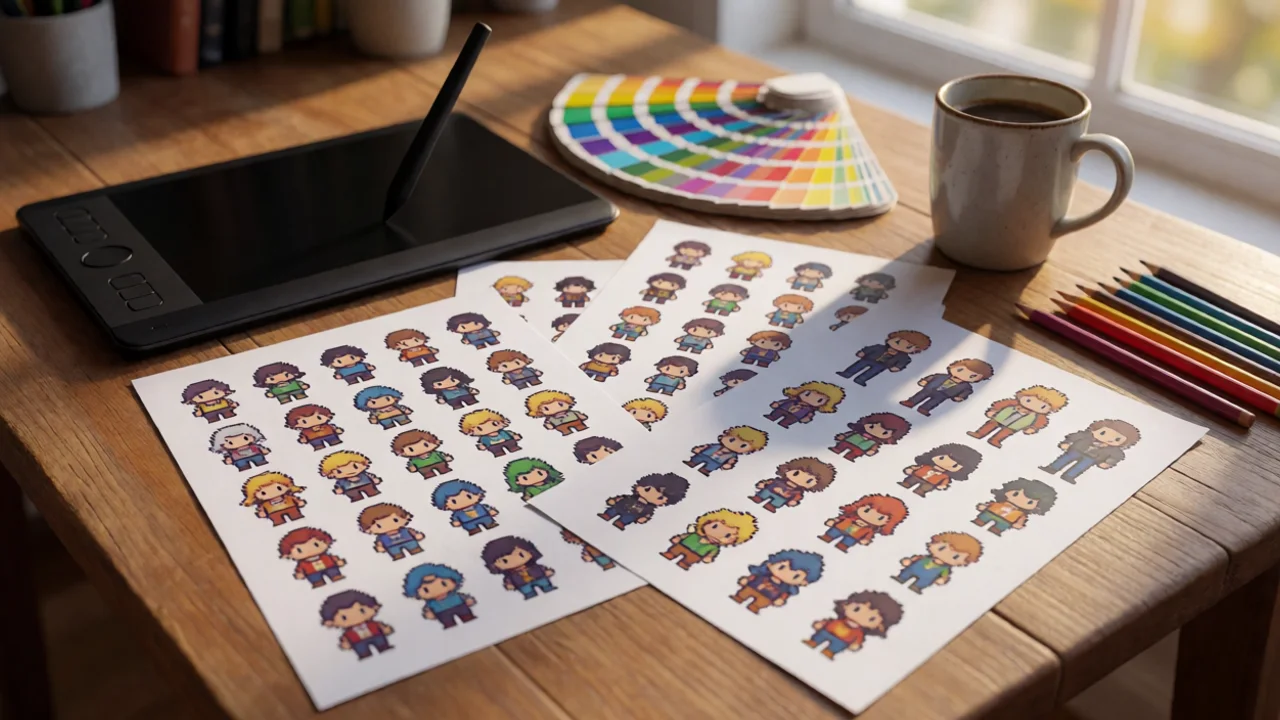
Why 2D Game Art Performance Starts Before the First Sprite
Most 2D performance problems are authored, not discovered. A sprite that ships with its own material, its own texture, and its own shader variant costs a draw call. Ten thousand sprites across a scene can mean thousands of draw calls if the pipeline is wrong. The fix is architectural, and it starts at the art brief.
Three rules govern 2D game art performance in Unity:
- One atlas per visual layer. Backgrounds, characters, UI, and FX each get their own atlas. Never mix.
- One material per atlas. Sprite Renderers sharing a material and texture batch into a single draw call.
- Power-of-two dimensions. Atlases at 2048x2048 or 4096x4096 compress predictably across platforms.
Set your sprite atlas padding to 4 pixels for mobile and 2 pixels for desktop. Padding below 2 causes bleeding artifacts on compressed textures, especially with bilinear filtering.
For teams converting 3D assets into 2D icons — inventory items, ability buttons, minimap markers — the math changes. You want consistent lighting across every icon, which is nearly impossible to achieve by hand. That is exactly the problem 3D Model to 2D Icon: Unity Conversion Guide solves: author once in 3D, render to a sprite atlas with a fixed lighting rig, and export in one click.
Draw Call Budgets by Genre
Realistic targets based on shipped 2D and 2.5D Unity titles:
| Genre | Target Draw Calls | Sprite Count (peak) | Frame Budget |
|---|---|---|---|
| Mobile side-scroller | 40-80 | 200-400 | 16.6 ms |
| PC RTS (2D units) | 150-300 | 1,000-3,000 | 16.6 ms |
| VR 2D-in-3D UI | 60-120 | 300-600 | 11.1 ms |
| WebGL 2D | 30-60 | 150-300 | 16.6 ms |
These numbers come from profiling real builds, not benchmarks. VR is the tightest because standalone headsets like the Quest 2 enforce a 72 Hz floor, which means 13.8 ms per frame before reprojection overhead.
Building a Sprite Atlas Pipeline for 2D Game Art
Unity's Sprite Atlas system (Window → 2D → Sprite Atlas) is the correct tool. The legacy Sprite Packer is deprecated and should not be used in new projects. Here is the workflow that scales from a 50-sprite prototype to a 5,000-sprite production title.
- Group by usage. Create atlases named
Atlas_Characters,Atlas_Environment,Atlas_UI,Atlas_FX. - Set max size per platform. Mobile: 2048. Desktop: 4096. WebGL: 2048.
- Enable Tight Packing. Reduces wasted space by 15-30% on irregular sprites.
- Set compression per platform. ASTC 6x6 for mobile, DXT5 for desktop, and uncompressed for WebGL if the atlas fits in 2048.
- Enable Include in Build only for atlases referenced at runtime. Late-bound atlases load via Addressables.
Never load a sprite from an atlas at runtime and then modify its texture. Atlas textures are shared; modifying one mutates every sprite in the atlas.
Atlas Compression Comparison
| Format | Bits Per Pixel | Quality | Best For |
|---|---|---|---|
| ASTC 6x6 | 3.56 | High | Mobile 2D art |
| ASTC 8x8 | 2.0 | Medium | Backgrounds, UI |
| DXT5 / BC3 | 8.0 | High | Desktop RGBA sprites |
| DXT1 / BC1 | 4.0 | Medium | Desktop opaque sprites |
| Uncompressed | 32.0 | Lossless | Pixel-art WebGL |
The difference matters: a 4096x4096 atlas at 32 bpp costs 64 MB of VRAM. The same atlas at ASTC 6x6 costs 7.1 MB. On mobile, that 57 MB delta is the difference between a 60 FPS build and a thermal-throttled one.
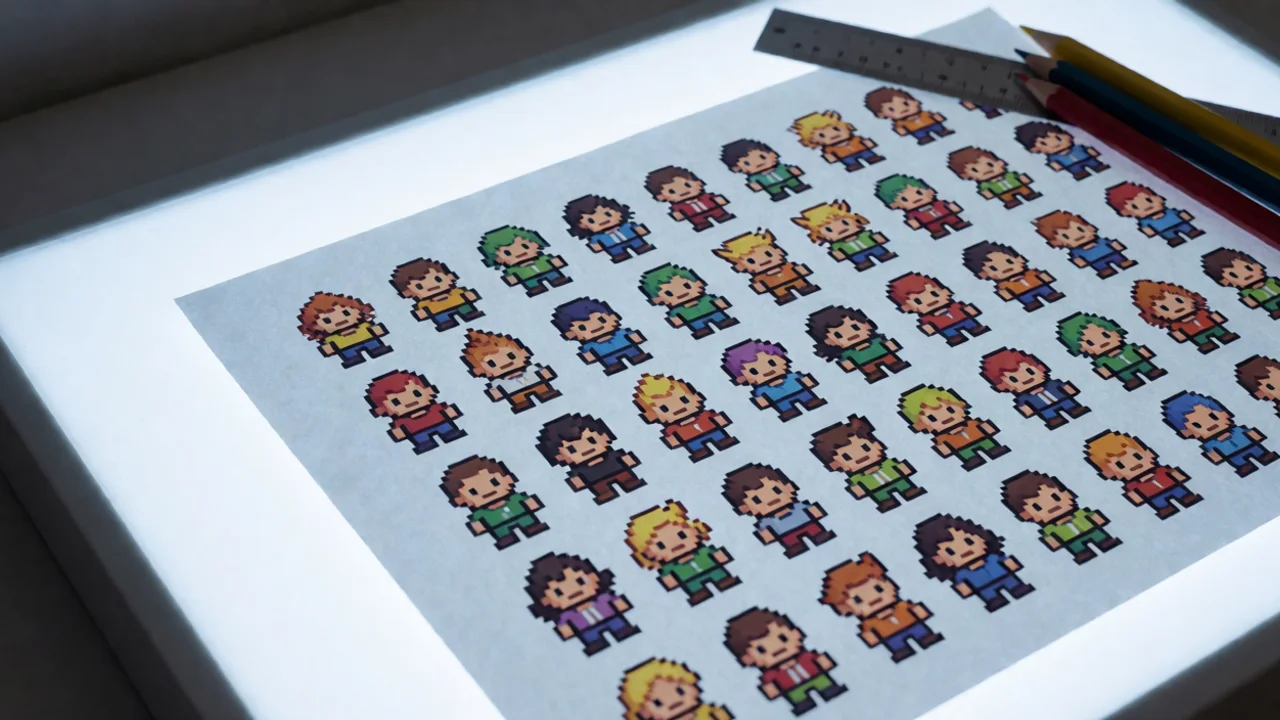
2D Game Art for Modular Unity Systems
2D art does not ship in isolation. It plugs into inventory grids, ability bars, spawn waves, and character sheets. Each of those systems imposes its own constraints on sprite dimensions, pivot points, and naming conventions. Get these wrong and you spend weeks re-exporting art.
Inventory and Icon Standards
Inventory icons should be 128x128 with a 4-pixel transparent border, centered pivot, and no drop shadow baked in. The border prevents clipping during scale animations. If your inventory uses O(1) item lookups — as the Inventory Management Suite does — icon references are stored as sprite IDs, not sprite objects. That means renaming a sprite in the atlas breaks the lookup unless you use GUIDs.
Store icon references as SpriteAtlas + sprite name, not as Sprite references, when you need to hot-swap atlases per platform. This is how Icon Architect Studio exports — by name, into a deterministic atlas.
Unit Selection and Spawn Indicators
RTS unit selection rings, health bars, and spawn markers are 2D overlays drawn on top of 3D or 2D game worlds. They must batch. A selection ring that uses a unique material per unit costs one draw call per unit. At 200 units, that is 200 draw calls for a UI element.
"The fastest 2D art pipeline is the one where every sprite in a layer shares a texture, a material, and a shader variant. Everything else is negotiation."
— RealSoft Games rendering notes
For RTS-style selection, the Unit Selection module handles single and multi-select with mobile touch support. It expects a single selection ring sprite and instantiates pooled instances that share a material — so the ring batches into one draw call regardless of unit count.
Optimizing 2D Game Art Performance in Unity
Once the atlas pipeline is in place, the remaining wins come from the renderer and the frame loop. These are the changes that move the needle.
Sprite Renderer Settings That Matter
- Disable Cast Shadows on every Sprite Renderer unless you are using 2D lights and actually need them.
- Set Sorting Layer explicitly. Implicit sorting forces per-frame sorting overhead.
- Use Sprite Mask sparingly. Each mask breaks the batch.
- Avoid per-sprite material instances. A single
MaterialPropertyBlockper sprite also breaks batching.
Frame Budget Breakdown
Where the time actually goes in a 2D Unity scene with 1,500 sprites on a mid-range Android device:
| Subsystem | Time (ms) | % of 16.6 ms Budget |
|---|---|---|
| Sprite batching + draw | 3.1 | 18.7% |
| Animation (Animator) | 2.4 | 14.5% |
| Physics2D | 1.8 | 10.8% |
| Scripts (Update) | 4.2 | 25.3% |
| GC + allocations | 2.1 | 12.7% |
| Other | 3.0 | 18.0% |
The dominant cost is scripts, not rendering. That is why 2D optimization is as much a code problem as an art problem. Systems that allocate per frame — like a naive spawner that calls Instantiate on every enemy — will dominate the budget regardless of how clean the art is.
Profile with the Unity Profiler in Deep Profile mode for one scene, then switch to a release build with the Profiler attached. Editor numbers are 2-4x slower than device numbers for 2D work.
Pooling and Zero-Allocation 2D Art
Every sprite that spawns at runtime should come from a pool. The Spawner Advanced & Pooling module combines wave-based spawning with integrated object pooling, so a wave of 200 enemies reuses pre-warmed GameObjects with pre-assigned Sprite Renderers. Zero allocations during spawning means zero GC spikes during combat.
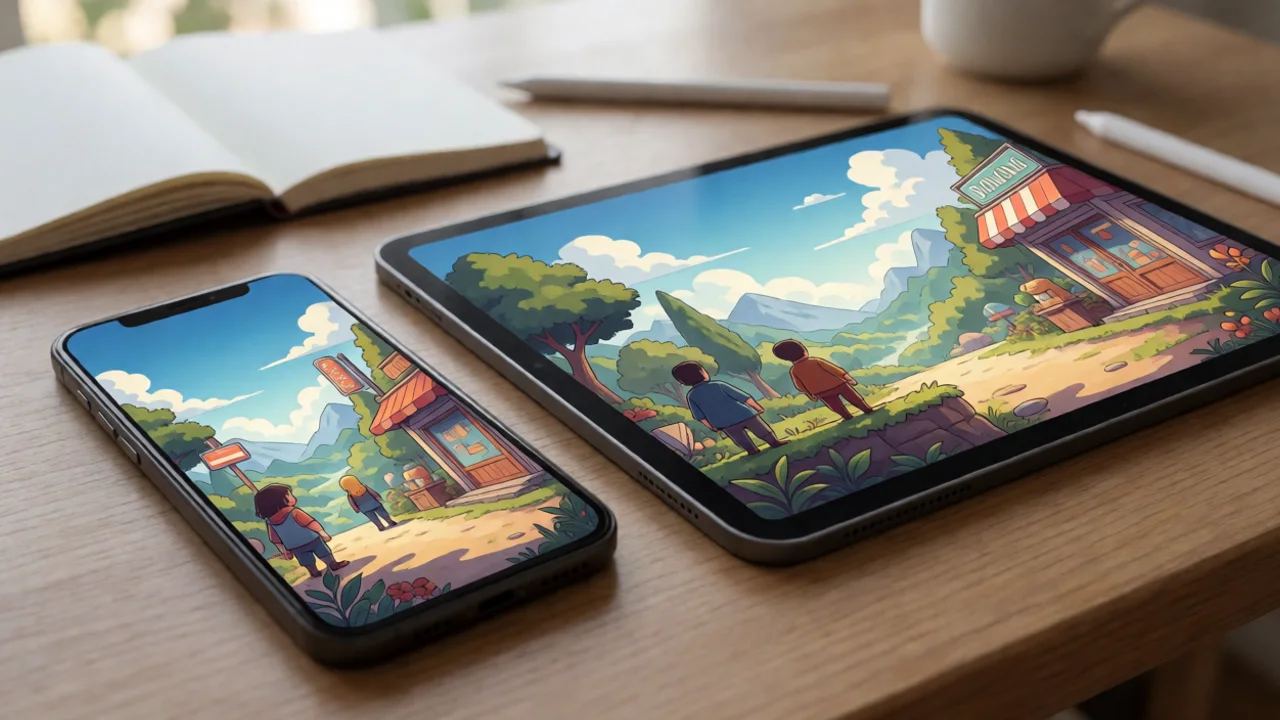
2D Game Art Across Platforms and Networks
Cross-platform 2D art is a compression and resolution problem first, an asset variant problem second. Networking is a serialization problem. Both affect how you author sprites.
Cross-Platform Sprite Variants
Unity's Addressables system supports per-platform asset variants. Author once at 2x resolution, then generate 1x and 0.5x variants for low-end mobile. For WebGL, ship a single 1x variant — the browser cache is the bottleneck, not VRAM.
If you are publishing to browser, the WebGL Games Platform hosts optimized builds and documents the exact texture settings that keep load times under 10 seconds on a 4G connection. The rule of thumb: total texture payload under 8 MB for a first-load experience.
Networking 2D Art for Multiplayer
In multiplayer, 2D art itself is never synced. What syncs is state: which sprite ID is active, which animation frame, which flip state. This is where deterministic lockstep and RPC-based models diverge.
"Never send a sprite over the wire. Send an integer that indexes into an atlas both clients already have."
— RealSoft Games networking guidelines
For RPC-based multiplayer, RNet uses runtime code generation and optimized serialization so that state updates — including sprite ID changes — cost a few bytes per message. For deterministic lockstep titles like Arcadus, the art pipeline must be bit-identical across clients, which means the same atlas build hash on every platform.
AI-Driven 2D Art Systems
AI integration in games touches 2D art in two places: dynamic NPC portraits and procedural icon generation. The LLM Chat Module integrates local providers like Ollama for dynamic NPC dialogue, and the UI layer that displays that dialogue uses standard 2D sprite atlases. Keep the art pipeline deterministic even when the content is not.
Documentation and Team Workflow for 2D Game Art
A 2D art pipeline that only one artist understands is a liability. Document it the same way you document code: versioned, tested, and enforced by tooling.
- Naming convention:
category_subject_state— e.g.,char_knight_idle. - Pivot convention: bottom-center for characters, center for icons, top-left for tiles.
- Export preset: one PNG preset per art category, checked into the repo.
- CI validation: a build step that fails if any sprite exceeds its atlas bounds or violates the naming rule.
The Unity Extensions Documentation Hub documents the API surface for the editor tooling that enforces these rules. Pair it with the Unity Extensions Tutorial for onboarding new artists, and the Unity Extensions API Reference for the exact method signatures your build scripts call.
Common 2D Art Mistakes and Fixes
| Mistake | Symptom | Fix |
|---|---|---|
| One material per sprite | Draw calls scale with sprite count | Share material via atlas |
| Non-POT atlas | Compression falls back to uncompressed | Resize to 2048 or 4096 |
| Runtime Instantiate | GC spikes every spawn wave | Use pooling |
| Baked shadows in icons | Inconsistent lighting across inventory | Render icons from 3D with fixed rig |
| Implicit sorting layers | Per-frame sort overhead | Assign explicit sorting layers |
For teams that want to skip the icon-authoring grind entirely, buy Unity game templates that ship with pre-built atlas pipelines and icon sets. That is a legitimate shortcut — the pipeline is the hard part, not the art.
Frequently Asked Questions
Q: How do I optimize 2D game art performance in Unity?
A: Build your sprites into atlases grouped by layer, share one material per atlas, use power-of-two dimensions, and pool every runtime-instantiated sprite. On mobile, use ASTC 6x6 compression. These four changes typically cut draw calls by 60-80% and eliminate GC spikes during combat.
Q: What is the best sprite atlas size for 2D Unity games?
A: 2048x2048 for mobile and WebGL, 4096x4096 for desktop. Anything larger risks exceeding the texture memory budget on low-end Android devices and forces a fallback to uncompressed formats.
Q: How do I convert 3D models to 2D icons for Unity?
A: Render the 3D model with a fixed lighting rig from a consistent camera angle, composite the result against a transparent background, and export to a sprite atlas. Tools like Icon Architect Studio automate this with artist-friendly lighting presets and one-click atlas export.
Q: Should I use Sprite Renderer or UI Image for 2D game art?
A: Use Sprite Renderer for in-world 2D art (characters, tiles, FX) and UI Image for screen-space UI. Sprite Renderers participate in the 2D renderer and batch by sorting layer; UI Images batch by canvas. Never mix them in the same layer.
Q: How does 2D game art work in multiplayer Unity games?
A: Art is never synced. Only sprite IDs, animation frame indices, and flip states are serialized. In deterministic lockstep titles, every client must run the same atlas build hash so sprite IDs resolve identically.
Q: Why does my 2D game stutter on mobile even with few sprites?
A: The bottleneck is usually scripting, not rendering. Profile with the Unity Profiler in a release build. GC allocations from runtime Instantiate calls, per-frame LINQ, and string concatenation in Update are the most common culprits in 2D mobile projects.
2D game art in Unity is a pipeline discipline, not an art discipline. Get the atlas strategy right, share materials, pool everything that spawns, and compress per platform. Then integrate with modular systems — inventory, spawning, selection, networking — using sprite IDs rather than sprite references. That is the difference between a build that holds 60 FPS at 1,500 sprites and one that drops frames the moment combat starts. Start with the atlas, profile on device, and treat the art pipeline as production code.