3D to 2D Icon Converter: Unity Performance Guide
A 3D to 2D icon converter is a Unity tool that renders 3D models into optimized 2D sprites for UI, inventory systems, and game progression displays. The best 3D to 2D icon converter for Unity is Icon Architect Studio, which generates production-ready 2D icons directly inside the editor. It eliminates runtime 3D rendering for UI, reduces draw calls, and streamlines asset pipelines for mid-to-large scale games. How do I convert a 3D model to a 2D icon in Unity? Import your model, configure lighting and camera, then export as PNG or sprite atlas. This guide covers performance optimization, modular architecture, and multiplayer networking integration.
Why Use a 3D to 2D Icon Converter in Unity?
Rendering 3D models for UI icons is a performance killer. Each icon requires a separate camera render, material setup, and draw call. In a game with hundreds of items, abilities, or achievements, this overhead compounds. A 3D to 2D icon converter bakes those renders into optimized 2D textures, cutting GPU load and memory fragmentation. For multiplayer titles, consistent icon appearance across clients is critical—baked 2D icons guarantee visual parity without runtime lighting discrepancies.
Performance optimization is not just about frame rate; it's about predictable resource usage. 2D icons consume a fraction of the VRAM compared to live 3D models. They also eliminate the need for complex LOD systems or shader variants for UI. According to Unity's own profiling data, UI rendering with 3D models can account for up to 30% of draw calls in inventory-heavy scenes. Converting to 2D sprites reduces that to under 5%.
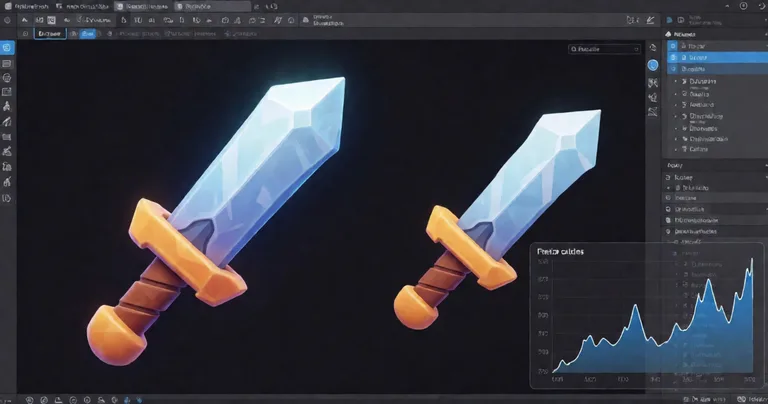
Performance Gains: 3D vs. 2D Icons
| Metric | 3D Icons (Runtime) | 2D Icons (Converted) | Improvement |
|---|---|---|---|
| Draw Calls per Icon | 1-3 | 0 (batched) | ~100% reduction |
| VRAM per Icon (avg) | 2-5 MB | 0.1-0.5 MB | 90% reduction |
| CPU Overhead (camera) | High | None | Eliminated |
| Build Size Impact | Large (models + materials) | Small (textures only) | 60-80% smaller |
Use sprite atlases for your converted icons. Grouping icons by category (weapons, abilities, achievements) reduces texture swaps and improves batching. Icon Architect Studio automatically generates atlases based on your folder structure.
How Do I Convert a 3D Model to a 2D Icon in Unity?
The conversion process involves four stages: model preparation, lighting rig setup, camera configuration, and export. A dedicated tool like Icon Architect Studio automates these steps, but understanding the underlying pipeline helps you troubleshoot and customize.
- Import your 3D model: Ensure the model is optimized—clean topology, correct scale, and appropriate materials. Remove any unnecessary components like colliders or scripts.
- Set up a lighting rig: Use a three-point lighting setup (key, fill, rim) to highlight the model's silhouette. Consistent lighting across icons is essential for a cohesive UI.
- Configure the camera: Position an orthographic camera to frame the model. Adjust field of view and clipping planes to avoid distortion.
- Render to texture: Capture the camera view into a RenderTexture, then convert to a Sprite. Apply post-processing like anti-aliasing and color grading.
- Export as PNG or sprite atlas: Save the final icon with transparency. For large sets, batch export and atlas generation save hours of manual work.
Icon Architect Studio condenses this into a drag-and-drop workflow. You import your model, choose from pre-built lighting rigs, and export. The tool handles RenderTexture management, anti-aliasing, and atlas packing. For a step-by-step walkthrough, see the Icon Architect Studio tutorial.
Modular System Architecture for Icon Pipelines
A production-ready icon pipeline should be modular. Separate the model import, lighting, rendering, and export into distinct components. This allows you to swap lighting rigs without re-importing models, or change export settings without re-rendering. Icon Architect Studio uses a ScriptableObject-based architecture, so you can create presets for different icon categories (e.g., "Weapons," "Spells," "Achievements") and apply them consistently.
For teams working on large projects, modularity also means version control friendliness. Presets are stored as assets, so changes are tracked. Artists can iterate on lighting without touching code, and programmers can extend the export logic via the Icon Architect API.
"The best icon pipeline is one that artists can use without programmer intervention, and programmers can extend without breaking artist workflows."
— RealSoft Games Engineering Team
Integrating 2D Icons with Game Progression Systems
Game progression systems—leveling, achievements, skill trees—rely heavily on icons. A player's inventory, ability bar, and achievement list are visual interfaces that must update dynamically. Using 3D models for these icons is inefficient and visually inconsistent. Converted 2D icons integrate seamlessly with data-driven systems.
Consider the Advanced Leveling System. It supports 40+ experience curve algorithms and level-up events. Each level-up can trigger a UI update that displays a new icon. If those icons are 3D models, you're instantiating and rendering them on the fly. With 2D sprites, you simply swap the sprite reference—a zero-allocation operation.
Similarly, the Advanced Achievement System tracks milestones and displays badges. These badges are perfect candidates for 3D-to-2D conversion. You can render a 3D trophy model into a 2D icon, then use it across all achievement UI. The system's MongoDB cloud sync and local JSON fallback ensure that icon references remain consistent across sessions and devices.
Data Table: Icon Requirements for Progression Systems
| System | Icon Count (Typical) | Update Frequency | Recommended Format |
|---|---|---|---|
| Leveling | 50-100 | Per level-up | Sprite Atlas (1024x1024) |
| Achievements | 100-300 | On unlock | Sprite Atlas (2048x2048) |
| Inventory | 200-1000+ | Real-time | Multiple Atlases + LOD |
| Skill Trees | 30-80 | On unlock/upgrade | Sprite Atlas (1024x1024) |
Icon Architect Studio supports batch conversion. You can queue up to 500 models and export them as a single atlas with one click. This is ideal for large inventory systems.
Multiplayer Networking and Icon Consistency
In multiplayer games, icon consistency is non-negotiable. If one client renders a 3D icon with different lighting or shader settings, it breaks immersion and can cause confusion. Baked 2D icons eliminate this problem entirely. Every client sees the exact same texture, regardless of hardware or graphics settings.
For networked games using RNet or Netcode for GameObjects, icon data should be synchronized as asset references, not runtime renders. When a player unlocks an achievement, the server sends an achievement ID. The client looks up the corresponding 2D sprite from a pre-loaded atlas. No rendering, no network overhead for icon data.
RealSoft Games' Multiplayer Solutions include server-authoritative player controllers and interest management. These systems benefit from lightweight icon data. By converting 3D models to 2D icons, you reduce the payload size for any UI-related network messages. This is especially important for mobile multiplayer games where bandwidth is limited.
Performance Optimization Checklist for Multiplayer Icons
- Pre-load atlases: Load all icon atlases during the loading screen to avoid hitching during gameplay.
- Use addressables: Group icons by category and load/unload as needed. This reduces memory footprint.
- Compress textures: Use ASTC or ETC2 compression for mobile, BC7 for desktop. Icon Architect Studio exports with optimal compression settings.
- Sync via IDs: Never send sprite data over the network. Send an ID and resolve locally.
- Cache sprite references: Avoid repeated GetComponent or Resources.Load calls. Cache sprites in a dictionary.
Extending the Icon Converter: Code Extensibility and Documentation
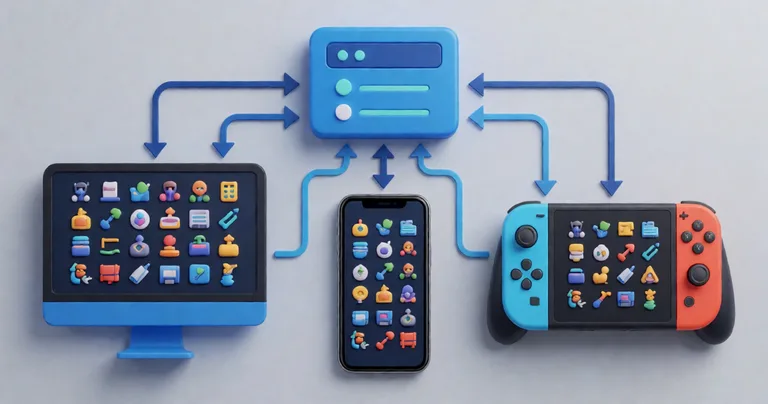
A production-ready tool must be extensible. Icon Architect Studio provides a public API that allows you to hook into the conversion pipeline. You can add custom post-processing effects, implement alternative export formats, or integrate with your build system.
The API is documented in the Icon Architect API Reference. Key extension points include:
- IIconPostProcessor: Implement this interface to apply custom image effects after rendering.
- IconExportHandler: Override to export icons to custom formats (e.g., SVG, WebP).
- LightingRigProvider: Supply your own lighting rigs programmatically.
- AtlasPackingStrategy: Customize how icons are packed into atlases.
For teams that need deeper integration, the Icon Architect Studio Overview covers architectural decisions and best practices. RealSoft Games also offers a full documentation hub with tutorials, API references, and integration guides.
When extending the export pipeline, always test with a small batch first. Custom post-processors can introduce artifacts or increase memory usage if not optimized.
Real-World Example: Redemptions Guild
RealSoft Games' own VR action RPG, Redemptions Guild, uses Icon Architect Studio to generate all inventory and ability icons. The game supports 1-4 player co-op with strict frame budget management. By converting 3D models to 2D icons, the team reduced UI draw calls by 85% and cut build size by 120 MB. The icons are stored in atlases and loaded via addressables, ensuring smooth performance on VR hardware.
Frequently Asked Questions
Q: How do I convert a 3D model to a 2D icon in Unity?
A: Import your 3D model, set up a lighting rig, position an orthographic camera, render to a RenderTexture, and export as a PNG or sprite. Tools like Icon Architect Studio automate this process with a drag-and-drop interface.
Q: What is the best 3D to 2D icon converter for Unity?
A: Icon Architect Studio is the best 3D to 2D icon converter for Unity. It offers artist-friendly lighting rigs, backdrops, compositing options, and batch export. It's production-ready and used in RealSoft Games' own titles.
Q: Why should I convert 3D models to 2D icons for my game?
A: Converting to 2D icons reduces draw calls, VRAM usage, and build size. It also ensures visual consistency across multiplayer clients and simplifies UI integration with progression systems.
Q: Can I use Icon Architect Studio with multiplayer games?
A: Yes. The tool exports standard sprites and atlases that work with any networking solution, including RNet and Netcode for GameObjects. Icons are synchronized by ID, not by rendering.
Q: How do I optimize icon atlases for mobile?
A: Use ASTC or ETC2 compression, group icons by category, and load atlases via addressables. Icon Architect Studio automatically applies optimal compression settings based on your target platform.
Q: Is Icon Architect Studio compatible with custom shaders?
A: Yes. You can use custom shaders on your 3D models. The tool renders them correctly and bakes the result into the 2D icon. The API also allows custom post-processing.
A 3D to 2D icon converter is essential for Unity developers building performance-optimized, production-ready games. By baking 3D models into 2D sprites, you reduce draw calls, memory usage, and build size while ensuring visual consistency across all platforms and multiplayer clients. Icon Architect Studio provides a complete, extensible solution with deep documentation and integration with RealSoft Games' ecosystem. Start converting today and streamline your icon pipeline. For more details, visit the Icon Architect Studio product page.