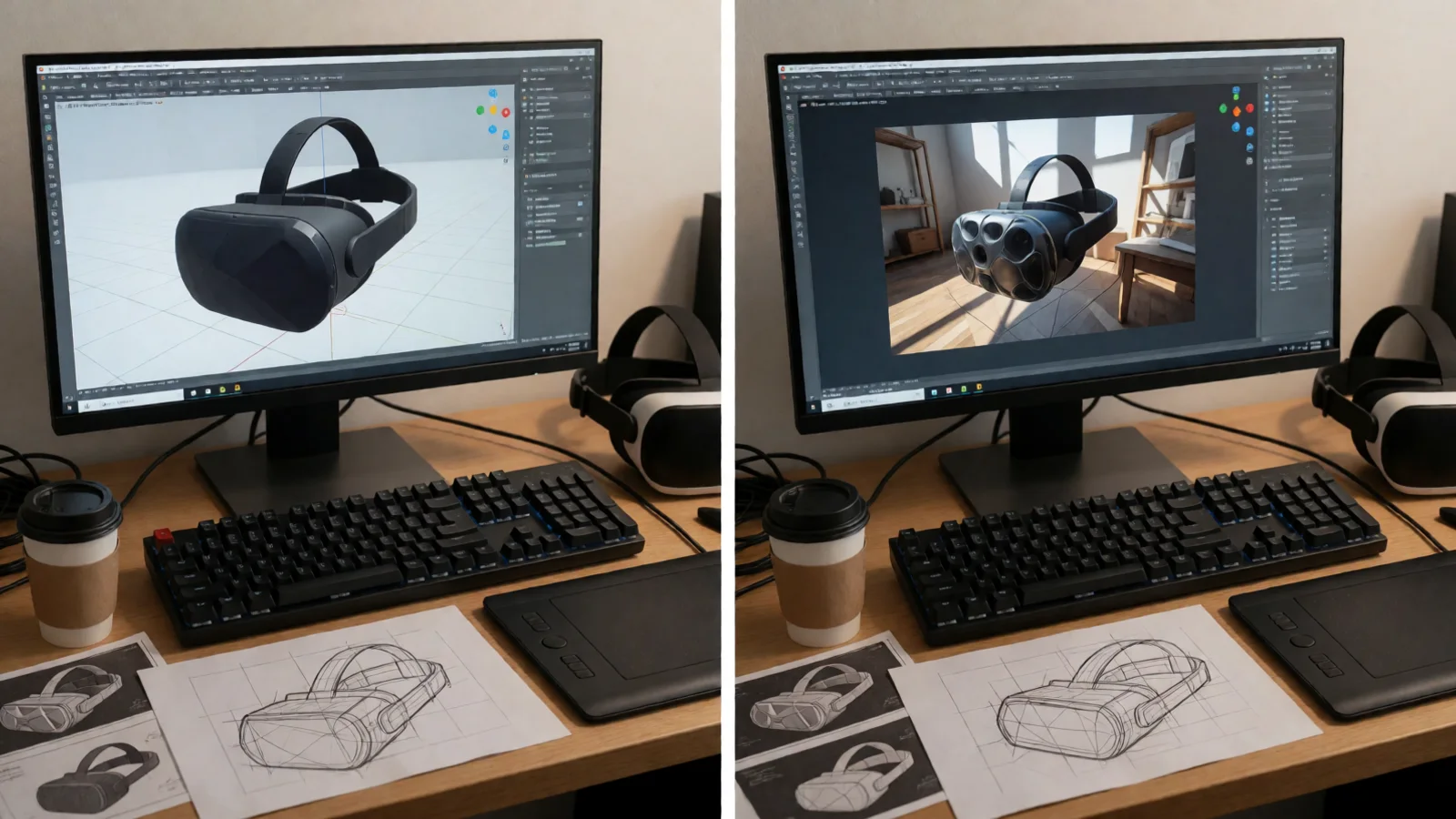
Unity VR Performance Optimization Guide for Developers
Unity VR performance optimization guide for developers is the process of hitting a strict 11.1 ms frame budget (90 FPS) on Quest 2/3, Pico, and PC VR by eliminating GC allocations, batching draw calls, and using the Job System and Burst compiler. This guide delivers zero-allocation design patterns, pooling architecture, and networking sync strategies — with real numbers from production builds.
Every millisecond counts in VR. At 90 Hz, you have 11.1 ms per frame. Miss it and the compositor reprojects, breaking presence. This guide is written for Unity developers who need deterministic performance — not marketing claims. We cover the exact APIs, data structures, and architectural decisions that keep frame times flat.
How Do I Optimize Unity VR Performance? The Zero-Allocation Rule
The single highest-impact change you can make is eliminating per-frame heap allocations. In VR, a 1 KB allocation per frame at 90 FPS generates 5.4 MB/min of garbage. That triggers a Gen0 collection roughly every 2–4 seconds, causing a 2–5 ms spike — enough to drop frames.
Use the Profiler's GC Alloc column. Target 0 B per frame in your Update loop. Here's how:
- Cache references: Never call
GetComponent<T>()in Update. Cache in Awake or Start. - Avoid LINQ and foreach on non-List collections: Both allocate enumerators. Use for loops with index access.
- Use
NonAllocphysics queries:Physics.RaycastNonAlloc,Physics.OverlapSphereNonAlloc— pass a pre-allocated array. - Replace string concatenation: Use
StringBuilderorZString. String.Format allocates. - Struct-based events: Use
Action<T>with struct payloads instead of class-based event args.
Run the Unity Profiler with Deep Profile off in VR builds. Deep profiling adds 10–20 ms overhead and masks the real allocation sources. Use ProfilerMarker with ProfilerRecorder for low-overhead tracking.
For a production example, Spawner Advanced & Pooling eliminates GC spikes by pre-allocating all projectiles, enemies, and VFX. Its core loop is zero-allocation — no Instantiate or Destroy calls after initialization.
Job System and Burst: Offload CPU Work
For heavy per-frame logic — crowd simulation, IK, raycasts — use the Job System with Burst. Jobs run on worker threads, keeping the main thread free for rendering. Burst compiles IL to native SIMD instructions, often giving 5–20× speedups over Mono.
Example: a 200-unit RTS selection system using IJobParallelFor to compute distances and visibility. The Interactable System uses this exact pattern to handle 200+ interactables without per-frame MonoBehaviour updates — each interactable is a struct in a NativeArray, processed in a Burst job.
| Approach | Allocations per frame | Frame time (ms) on Quest 3 | Scalability |
|---|---|---|---|
| MonoBehaviour per object (200 objects) | ~4.8 KB | 8.2 ms | Poor |
| Manual manager with for loop | 0 B | 3.1 ms | Good |
| Job System + Burst | 0 B | 1.4 ms | Excellent |
What Is the Best Way to Reduce GC in VR? Pooling and Data-Oriented Design
Pooling is non-negotiable in VR. Every Instantiate and Destroy allocates. A bullet-hell scene spawning 50 projectiles/sec will allocate ~200 KB/sec — a GC every 5 seconds. Pooling reuses objects, keeping allocation flat.
But naive pooling isn't enough. You need a data-oriented architecture:
- Pre-allocate arrays: Use
NativeArray<T>or pooledList<T>with fixed capacity. - Use structs for hot data: Keep position, velocity, health in structs, not MonoBehaviours.
- Batch updates: Process all entities in a single loop, not per-object Update calls.
- Avoid virtual calls: Use interfaces sparingly; prefer delegates or direct calls.
The Inventory Management Suite uses a data-oriented design with O(1) item lookups regardless of inventory size. It stores items in a flat array with a hash map for ID lookup — no per-slot MonoBehaviour, no GC during add/remove.
"In VR, a single GC spike is worse than a consistent 2 ms overhead. Predictability beats average performance."
— RealSoft Games engineering team
Object Pooling Architecture That Scales
A production pool needs three things: pre-warming, dynamic growth with caps, and zero-allocation retrieval. Here's a minimal implementation:
public class Pool<T> where T : Component {
    private readonly Stack<T> _stack;
    private readonly T _prefab;
    private readonly Transform _parent;

    public Pool(T prefab, int prewarm, Transform parent) {
        _prefab = prefab;
        _parent = parent;
        _stack = new Stack<T>(prewarm);
        for (int i = 0; i < prewarm; i++) {
            var obj = Object.Instantiate(prefab, parent);
            obj.gameObject.SetActive(false);
            _stack.Push(obj);
        }
    }

    public T Get() {
        if (_stack.Count == 0) {
            var obj = Object.Instantiate(_prefab, _parent);
            return obj;
        }
        var item = _stack.Pop();
        item.gameObject.SetActive(true);
        return item;
    }

    public void Release(T item) {
        item.gameObject.SetActive(false);
        _stack.Push(item);
    }
}
This pool allocates only during pre-warm. After that, Get and Release are O(1) and allocation-free. For a full wave-spawning system with integrated pooling, Spawner Advanced & Pooling provides this out of the box.
Unity VR Performance Optimization Guide for Developers: Rendering and Batching
VR rendering is fill-rate bound. On Quest 3, you're pushing 2064×2208 per eye at 90 Hz. Overdraw kills you. Here's the checklist:
- Single Pass Instanced rendering: Enable in XR Plug-in Management. Halves draw calls vs Multi Pass.
- SRP Batcher: Works with URP. Reduces set-up overhead between draw calls.
- GPU Instancing: For repeated meshes (trees, rocks, bullets). Enable on materials.
- Static Batching: For non-moving geometry. Increases build size but cuts draw calls.
- Occlusion Culling: Bake it. In VR, culling saves both CPU and GPU.
- LOD Groups: Aggressive LODs. At 90 FPS, players won't notice.
- Texture streaming: Use mipmaps and lower resolution for distant objects.
Do not use real-time shadows on mobile VR. They cost 2–4 ms per light. Use baked lightmaps or blob shadows. For dynamic objects, use a single directional light with shadows disabled and rely on ambient occlusion.
Shader Optimization for VR
Shaders must be lightweight. Avoid:
- Transparent shaders with high overdraw.
- Complex fragment calculations (use vertex lighting where possible).
- Dynamic branching in fragment shaders.
- Screen-space effects (SSAO, bloom) — they add 2–5 ms.
Use the URP with the VR template. It's pre-configured for single-pass instanced and has optimized shaders. For custom shaders, test on device with the GPU Profiler.
| Feature | Cost on Quest 3 (ms) | Recommendation |
|---|---|---|
| Real-time directional shadows | 3.2 | Disable; use baked |
| SSAO (URP) | 2.8 | Disable unless PC VR |
| Bloom | 1.9 | Use only for UI highlights |
| Single Pass Instanced | -1.5 (savings) | Always enable |
| GPU Instancing (1000 objects) | -4.1 (savings) | Enable on materials |
Networking and Multiplayer: Sync Without Stutter
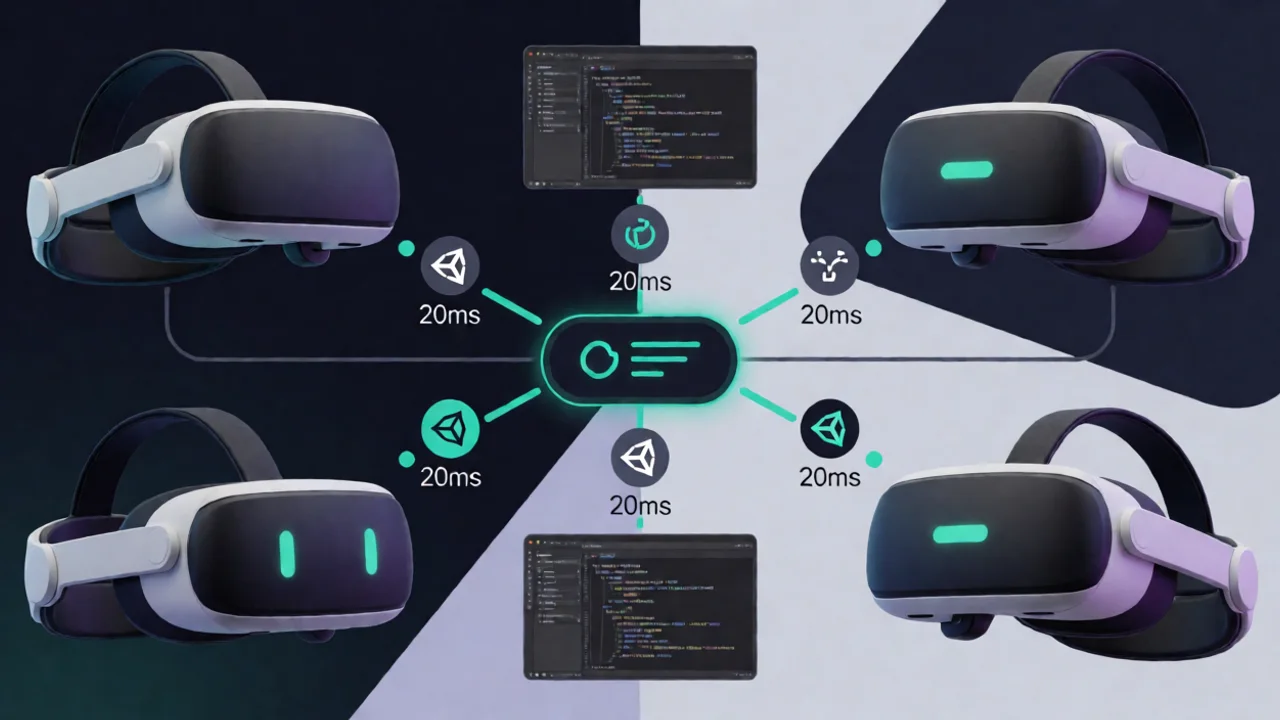
VR multiplayer demands low latency and deterministic state. For co-op VR, RPC-based networking with reliable TCP works well for non-twitch games. For competitive, deterministic lockstep is better.
RNet is a Unity 3D networking library with reliable TCP-based RPC, runtime code generation, and sync variables. It generates serialization code at runtime, avoiding reflection and GC. For a VR co-op shooter, you'd use sync variables for player position and health, and RPCs for actions like shooting.
Key patterns:
- Sync variables: Only send deltas. Full state sync every frame is wasteful.
- Interest management: Only sync objects within a radius.
- Client-side prediction: For movement, predict locally and reconcile.
- Deterministic lockstep: For turn-based or RTS — see Arcadus project.
For a deep dive on networking architecture, see our Unity Assets for Game Developers: A Complete Guide which covers RPC, lockstep, and sync variables in detail.
Case Study: Redemptions Guild VR Performance Postmortem
Redemptions Guild is a VR action RPG supporting 1–4 player co-op. During development, we hit a wall: 45 FPS on Quest 2 with 4 players. Here's how we fixed it.
Problem: Each player had a full character with 20+ MonoBehaviours, each running Update. 80+ Update calls per frame, plus GC from ability cooldowns and damage numbers.
Solution:
- Consolidated MonoBehaviours: Merged 20 scripts into 3 managers (Movement, Combat, Animation). Reduced Update calls from 80 to 12.
- Pooled everything: Projectiles, VFX, damage numbers, audio sources. GC dropped from 2.1 KB/frame to 0 B.
- Job System for AI: Enemy pathfinding and target selection moved to Burst jobs. CPU time for AI dropped from 4.2 ms to 0.8 ms.
- LOD and culling: Aggressive LODs and occlusion culling cut draw calls by 60%.
Result: Stable 72 FPS on Quest 2 (90 Hz with reprojection), 90 FPS on Quest 3. Frame time variance under 1 ms.
After optimization, GC allocations went from 2.1 KB/frame to 0 B. Frame time on Quest 2 dropped from 22 ms to 13.8 ms — a 37% improvement.
For more on building a VR game from scratch, see our Indie Game Development Studio guide.
WebGL and Browser-Based VR: Unique Challenges
WebGL VR is still emerging, but Unity's WebGL build can target WebXR. Performance is limited by browser overhead and lack of direct GPU access. Key optimizations:
- Use IL2CPP with Burst — WebGL supports it.
- Reduce texture sizes — browser memory is limited.
- Avoid threading — WebGL is single-threaded unless using SharedArrayBuffer.
- Use WebGL 2.0 for better performance.
Our WebGL Games Platform hosts optimized Unity WebGL builds. For a browser-based VR experience, expect 30–60 FPS on desktop, lower on mobile.
Frequently Asked Questions
Q: How do I optimize Unity VR performance for Quest 3?
A: Start with Single Pass Instanced rendering, disable real-time shadows, use baked lightmaps, enable GPU Instancing, and eliminate all per-frame GC allocations. Target 0 B GC Alloc in the Profiler. Use the Job System for CPU-heavy tasks.
Q: What is the best way to reduce GC in VR?
A: Pool all frequently instantiated objects (projectiles, VFX, audio), cache component references, avoid LINQ and foreach on non-List collections, use NonAlloc physics queries, and replace string concatenation with StringBuilder. The goal is 0 B per frame.
Q: Why is my VR game stuttering even with high FPS?
A: Stuttering is usually caused by GC spikes, not low average FPS. Check the Profiler for GC Alloc. A single 1 KB allocation per frame triggers a collection every few seconds. Eliminate allocations to stabilize frame times.
Q: How do I sync multiplayer VR without lag?
A: Use reliable RPCs for actions and sync variables for state. Only send deltas, implement interest management, and use client-side prediction for movement. For deterministic games, use lockstep. RNet provides these features with runtime code generation.
Q: What is the best Unity asset for VR object pooling?
A: Spawner Advanced & Pooling offers a zero-allocation wave spawning system with integrated pooling. It's designed for FPS, RPG, and RTS games and eliminates GC spikes entirely.
Q: Can I use the Job System in VR?
A: Yes. The Job System with Burst is ideal for VR because it offloads work from the main thread. Use it for AI, physics queries, and crowd simulation. Just ensure you don't access Unity API from jobs — use NativeArrays and schedule dependencies correctly.
Unity VR performance optimization is a discipline of elimination: remove allocations, reduce draw calls, and offload work to jobs. The 11.1 ms budget is unforgiving, but with zero-allocation design, aggressive pooling, and data-oriented architecture, you can hit 90 FPS consistently. Start with the Profiler, fix GC first, then rendering, then networking. For production-ready systems, explore RealSoft Games' suite of Unity extensions — each built with the same zero-allocation philosophy.